Can ChatGPT Upscale Images Without Changing Details?
ChatGPT can generate and edit images, but that is not a guarantee of an accurate upscale to a specific pixel size. If you want a larger file that preserves every detail, inspect the downloaded dimensions and compare the content yourself. A sharper-looking result can still change a face, word or texture.
Skip the manual work
Upload your photo and get a sharper version in about 30 seconds. Free, no sign-up.
Try the free unblur tool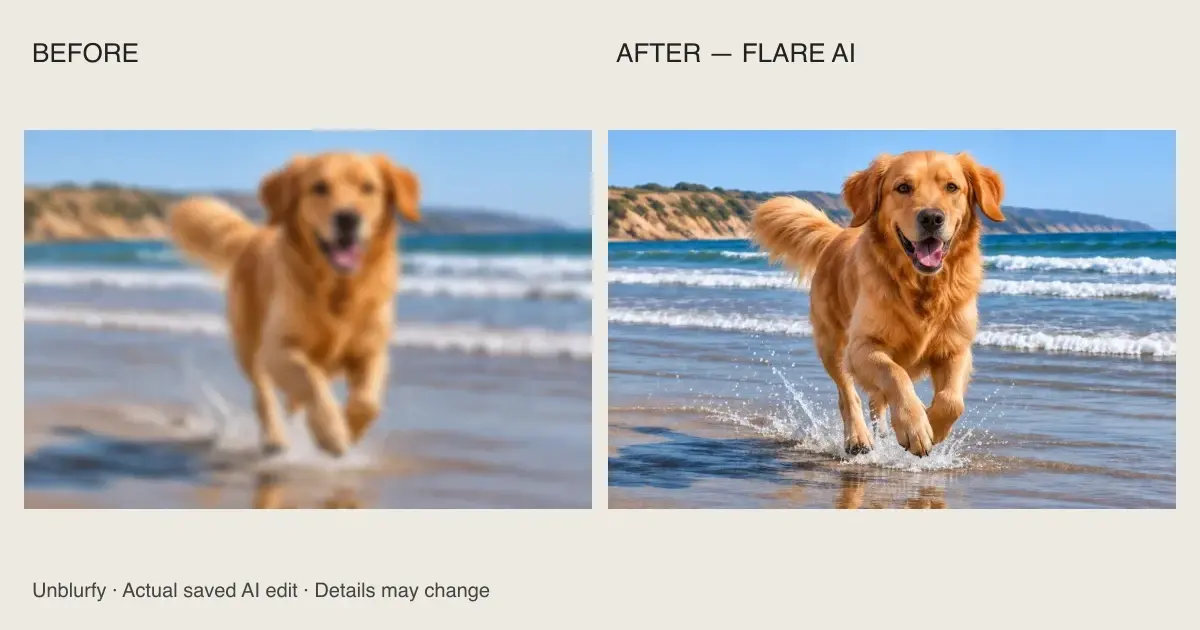
What the official guidance actually establishes
OpenAI's image generation guide describes using a reference image to edit an existing asset. It also says ChatGPT web availability and usage limits depend on the plan and workspace. We checked that guidance on November 9, 2026. It supports the ability to request an edit; it does not establish that every ChatGPT account can perform an exact, unchanged upscale to a particular pixel size. We do not turn an API size option into a promise about the consumer app.
Google's Gemini Apps Help documents uploading an image and asking for edits, as well as editing a generated image. We checked that page on the same date. Access and available models can differ, so use the current Google guidance for your account. We do not publish a universal Gemini output-size promise here. A request such as “make this bigger” still needs a downloaded-file check before you rely on the result.
To compare a larger edited version, open the image upscaler and keep the original export alongside it.
Enlargement and regeneration solve different problems
Ordinary resizing creates more pixels by calculating values from nearby pixels. It can make a file fit a larger layout, but it does not know a missing eyelash or the true letter on a distant sign. Generative editing instead makes an interpretation of the visible content. That can look cleaner, yet a pleasing result and an accurate record are different goals.
For an illustration you created, a small texture change may be acceptable. For a receipt, identity photo, historical record or product listing, an altered detail can matter. Decide which details must remain unchanged before processing. A written instruction to preserve them helps describe your goal, but does not verify the output. Keep a copy of the original and compare both at the same visible size.
When a chat-based image edit may be enough
Use an image conversation when the goal includes creative changes: a different background, a revised illustration or another treatment of your own artwork. You can describe the desired appearance and review a new version. Judge the result against your purpose rather than against the idea that all original pixels have survived. An edited graphic may be useful even when it is no longer an exact reproduction.
If you only need a small web illustration, check how it looks at the size where people will actually see it. There may be no reason to enlarge it. Keep lettering as editable text in your design file when possible, rather than asking a model to redraw a dense paragraph. Export a final copy once your layout is ready, and preserve the editable source for later revisions.
When a focused enhancement workflow is useful
A dedicated comparison view helps when you want to inspect softness, compression or small edges before choosing a download. Try the Unblurfy image unblur tool on a copy and move the slider across the areas you care about. Its AI output can also redraw details, so it is not a guarantee of exact recovery. The advantage is a clear comparison workflow, not immunity from model errors.
For text, use text deblur and compare the AI output with your original. AI can make text clearer, but very small or heavily blurred characters may be changed. Check amounts, reference numbers and other important information against the original image. For print projects, use the print size calculator before enhancing.
Step 1: keep the full-size AI-generated source
Download the image file from the service where you made it rather than capturing the on-screen preview. A screenshot may include interface elements and can have fewer pixels than the source. Find the file's actual width and height. Rename a working copy so the source remains easy to identify. Use images you own or have permission to process, especially when people or commercial designs are involved.
Choose your destination next: a web card, a photograph-sized print or a larger poster. The same file can look good in one use and soft in another. Write down the target dimensions and decide whether cropping is acceptable. This makes your comparison specific. You are checking whether the file suits a task, not trying to maximize a resolution label.
Step 2: enhance and compare in Unblurfy
Upload a working copy, review resolution and usage, then press Enhance photo to request AI reconstruction. Start with one image and inspect it before a batch. 1 free AI fix per day without signing in, or 2 per day when signed in, at 1K. Paid 1K uses 1 credit; 2K uses 2 credits. Batch processing requires membership; see pricing.
Compare faces, repeated patterns, small labels and borders. Look for newly drawn objects or a changed crop. Do not accept a result solely because its edges look crisp. If the source has important text, compare each line or return to an editable version. Processing often takes about 30 seconds, but it can take longer. Stop if the content has drifted instead of repeatedly generating new guesses.
Step 3: measure the result before printing or publishing
Check the downloaded pixel dimensions, not just the filename or a 1K/2K label. Unblurfy's 2K setting targets roughly four million pixels, with edges based on the input shape. It is not a universal 2048-pixel long edge, and actual model output can vary. Compare the result with the original at the same print or screen size, then choose the version that best fits your goal.
For printing, pixels divided by pixels per inch give physical inches. An image with 1800 pixels along one edge covers 6 inches at 300 pixels per inch. Changing only its DPI metadata does not add detail. Use a small physical proof for artwork or a product before ordering a batch. Keep the source and the final file together so future edits do not begin with a compressed copy.
Preparing a social post instead of a print? Our Instagram photo quality guide covers export dimensions, upload settings and checking your source before blaming compression.
Official sources checked November 9, 2026
Frequently asked questions
Can ChatGPT upscale images?
It can edit images using a reference. That does not guarantee a particular output size or preservation of every original detail. Check the actual downloaded file.
Can Gemini upscale images?
Google documents editing uploaded images. Treat a request for enlargement as an image edit and verify dimensions and content; do not assume it is an exact reconstruction.
Can ChatGPT enhance photos without changing faces?
A prompt can request preservation, but it is not proof that features stayed unchanged. Compare with the source and avoid relying on generated detail as evidence.
Will changing DPI make my AI image higher resolution?
No. DPI describes a relationship between pixels and physical print size. It does not add pixels or detail.
What is free in Unblurfy?
AI includes 1 daily 1K attempt anonymously or 2 signed in. Paid 1K uses 1 credit and 2K uses 2.
Skip the manual work
Upload your photo and get a sharper version in about 30 seconds. Free, no sign-up.
Try the free unblur tool